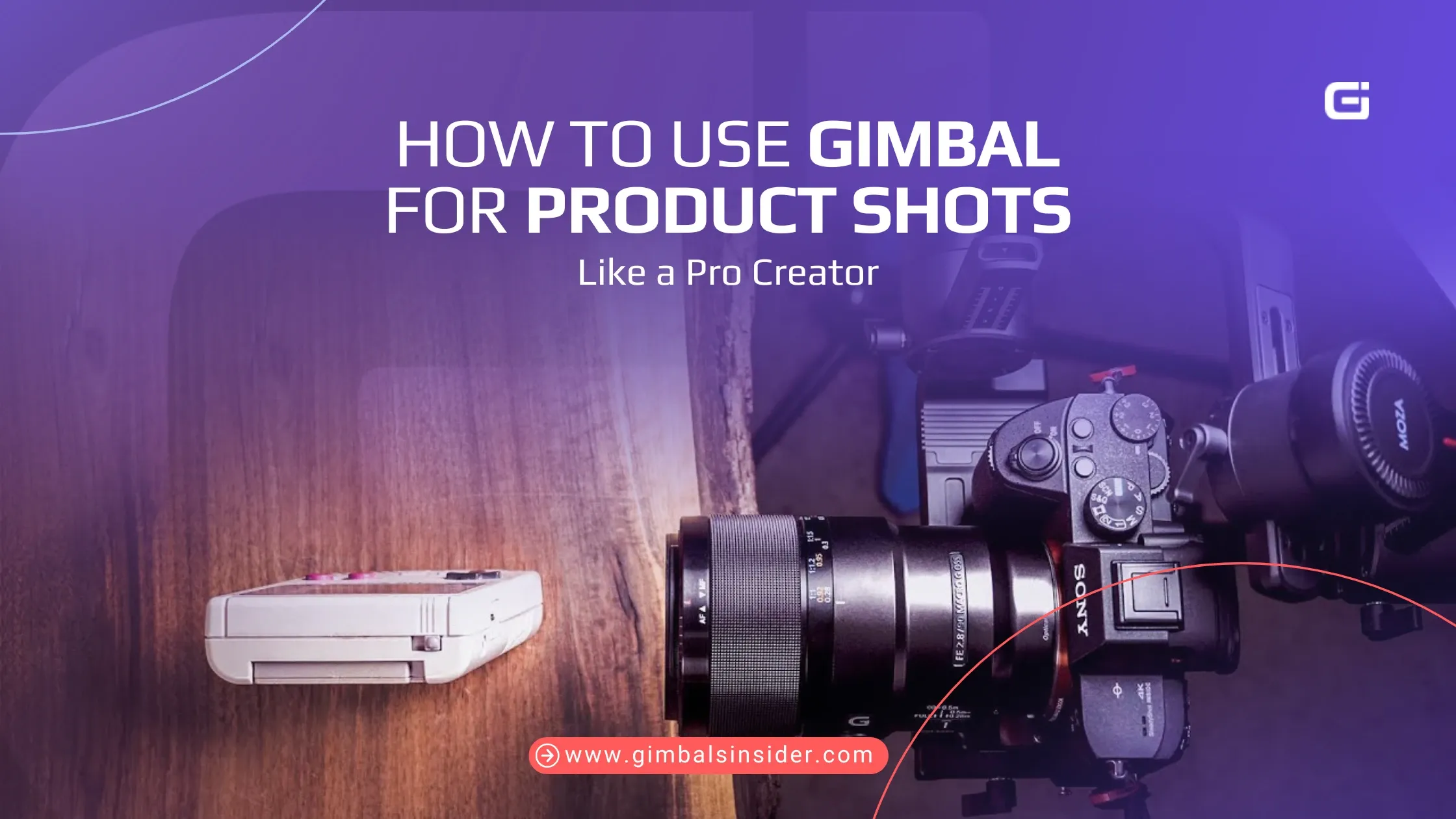

I remember my first product shoot. My hands shook, the footage wobbled, and nothing looked professional. Then I picked up a gimbal, and suddenly my shots glided, circled, and revealed products like a polished ad.
For you to get such results, you should know how to use gimbal for product shots.
- Mount and balance your camera
- Choose the correct mode (Lock, Pan Follow, or FPV)
- Frame the product with good light
- Try simple moves like push-ins or orbits
- Review smoothness and adjust settings
Up next, I’ll break down the steps from setup to different creative moves. You’ll also know the most common mistakes you must avoid while taking the shots to make your products stand out.
Key Takeaways
- Mount your camera or phone, then balance all three axes. Next, select the right mode, frame your product, record the shot, and finally, review to work on minor issues.
- Lock Mode is best for steady push-ins and clean reveals. Pan Follow lets you orbit around products. FPV Inverted makes pointing and shooting quick and natural.
- Don’t rush movements and skip balancing, or your motors will fight you. And don’t rely on editing to save messy clips.
Why Use a Gimbal for Product Shots?
You should use a gimbal for product shots because it keeps your shots steady, even during small movements, to make it look sharp and clean. For online sellers, that means your clips and photos highlight the details instead of distracting wobbles.
If you’re just starting with video, it also gives you the freedom to try shots that once felt impossible. Often, the shots include sliding in close, circling an item, or lifting the camera for a top-down reveal.
In addition, you can drop the camera low, sweep across a surface, or float past objects to give depth and style.
How To Use Gimbal For Product Photography
If you sell online or make videos, clean and steady shots are everything. So, let’s break down the ways of using a gimbal simply.
Step 1: Mount and Balance Your Camera/Smartphone
Before you start taking gimbal product shots, you must balance your gimbal. If it isn’t, the motors work harder, the battery drains faster, and you’ll see unwanted shakes in your footage.
- First, mount your camera or smartphone onto the gimbal’s quick-release plate. Lock it in place so it feels solid.
- Then, balance each axis one by one. Most gimbals use three-axis stabilization: tilt, roll, and pan.
- Shift your camera slightly forward, backwards, or sideways until it stays level on its own instead of tipping over.
- Once it’s balanced, the gimbal runs smoother and your product shots look professional.
Whether you’re showing a coffee mug, sneakers, or a gadget, balance makes your product feel polished on screen.
Step 2: Choose the Right Gimbal Mode
The gimbal mode you pick decides how natural your product shots look. Each mode changes the way your camera reacts to your hand movements.
FPV Inverted Mode
If you’re using the Pocket 3, check out FPV Inverted Mode. It keeps the frame locked to wherever your hand points. It operates like using your phone camera: point, move, shoot.
So, it’s easy to highlight items on a desk, show food on a plate, or frame a product right in the center.
Related Read: What Is FPV Mode In Gimbal?
Lock Mode
Lock Mode is ideal when you want your shots locked on the product. The gimbal freezes on your subject, even if you’re moving around. It’s perfect for push-ins, sliding past props in the foreground, or adding a smooth parallax effect.
If you’re just starting out, this is the mode that gives you that “pro commercial” look with the least hassle.
Pan Follow Mode
You can use Pan Follow to reveal a product from different angles in one take. It lets the camera follow your horizontal turns while keeping the tilt steady. It works great for revolving shots around a product showing its shape, details, and sides in one motion.
E-commerce sellers love this because it feels like a natural 360° demo.
Product Showcase Focus
Now, combine your gimbal mode with smart focus. On the Pocket 3, Product Showcase Focus automatically locks on the main object in the middle of your frame. It’s a lifesaver when you’re filming unboxings or quick demos.
If your product isn’t centered, switch to Single Focus Mode and just tap the screen to choose your focus point.
Step 3: Frame Your Product (centered, stable surface, good lighting).
Van Gogh once said ‘A picture without a frame is like a soul without a body." So, before you hit record, take a moment to look at how your item sits within the shot.
- Treat your product like the hero of the story.
- Make sure its USP is front and center.
- If you’re filming a portable charger, for example, angle the USB port or polished finish toward the lens.
- Now add some depth with props in the foreground, like glasses, books, or textured fabric.
- Keep the background simple by placing a wood table, a soft gradient, or a blurred light source without stealing focus.
And don’t count on editing to rescue bad framing. Sure, you can mask out clamps or fix small issues with rotoscoping, but the cleanest results always start in-camera.
Step 4: Try Simple Movements
Begin with straightforward gimbal moves before you tackle advanced tricks.
- The easiest one to try is the push-in. Switch your gimbal to lock mode, then walk forward slowly toward the product. If you let a few props or objects pass in the foreground, it instantly adds depth.
- Another move that works well is the orbit shot, where you gently circle around the product to show its shape from different angles. Keep your pace calm and steady to give customers time to notice the details.
Note: Go down to explore more creative movements.
Step 5: Review Rootage and Adjust Smoothness
After you’ve taken your shots, it’s time to check the rootage (the base stability of your footage). Play it back and look closely.
- Do the pans glide, or do they stutter?
- Does the tilt feel steady, or is there a hint of shake?
If anything feels off, go into your gimbal settings and adjust the motor strength. Small changes make a big difference. If it’s too weak and you’ll see wobble, too strong and the movement looks stiff, even robotic.
So, rewatch clips at both regular speed and slowed down. Trust what you see and work on it.
Creative Gimbal Movements That Improve Product Shots
Great product videos do more than show an item, they make customers feel something about it. So, here are five moves you can start using right away to uplift your product shots.
1. Orbit Shot: Rotate around the product for 360° glamour
If you want your product to feel premium, put it at the center and orbit around it. The camera glides in a circle to give a smooth 360° look at every detail. Lock your gimbal in follow mode and let it do the heavy lifting.
This shot excels with jewelry, tech gear, and lifestyle products. The moving background adds energy without distracting from the subject.
2. Push-In / Pull-Out Shot: Draw attention to branding
This move is all about focus.
- A slow push-in pulls the viewer’s eye straight to a logo, label, or key feature.
- A pull-out does the opposite. It starts tight, then reveals the bigger scene.
Both are simple, but they work because they guide attention exactly where you want it. Place objects in the foreground to exaggerate the sense of movement and give the shot more drama.
3. Top-Down Reveal: Great for food, flat-lay products
Overhead shots sell. Whether it’s a meal, makeup set, or flat-lay bundle, the top-down reveal makes it look professional.
Here, start close and lift smoothly to show the full spread. It feels like a mini-drone shot without the hassle. Wide lenses help capture everything, and good lighting keeps the shot from looking flat.
This style is perfect for e-commerce sellers who want eye-catching product demos.
4. Parallax Zoom: Creates depth for a premium feel
Here’s a trick straight from the movies. While your gimbal pulls back, zoom in with the lens to keep the subject the same size. The background stretches and warps, creating a dramatic depth effect.
This parallax zoom, or dolly zoom, works beautifully with watches, designer products, and high-end gadgets. However, keep the move steady as even small shakes can ruin the effect. Done right, it instantly signals sophistication.
5. Inception Roll (Advanced): Adds a modern cinematic twist
When you want something bold, the Inception Roll delivers. The gimbal spins the camera on its axis as you move forward or back to flip the world around your product. It looks futuristic, grabs attention, and is easy to program on gimbals like the Ronin or MOZA Air.
But you must use it sparingly! One or two shots are enough to give your video a cinematic punch without overwhelming the story.
Pro Tips for Getting the Best Product Shots with a Gimbal
Strong product shots are about clarity and flow. With your gimbal, focus on light, background, pacing, and motion so every frame works harder for you.
- Lighting Matters: Light is what sells the texture and shape of a product. Use softboxes, LED panels, or even indirect window light. Softer light reduces harsh shadows and makes the product feel polished and real.
- Background Control: Keep it clean. A smooth backdrop or uncluttered surface keeps all eyes on the product.
- Keep It Short: On ads and social, attention spans are tight. Aim for quick clips, like around 5 to 10 seconds. Shorter shots make your product pop and prevent the video from dragging.
- Add Motion Contrast: Don’t just move everything. Try mixing a steady product shot with subtle gimbal movement, or lock the gimbal and add hand interaction.
Common Mistakes to Avoid When Using a Gimbal for Product Shots
Let’s walk through the most common mistakes and how you can sidestep them.
- Moving Too Fast: Quick moves create shaky, jittery footage. So, keep your pans, tilts, and push-ins slow and controlled.
- Poor Balancing: If your camera isn’t balanced, the motors strain, batteries drain, and the shot shakes. Take a few minutes to balance the setup so it feels weightless on the gimbal arm.
- Wrong Gimbal Mode: Each mode serves a purpose. Lock Mode works well for product reveals, Pan Follow for tracking, and POV for dynamic angles. Pick the mode that matches your shot, or it will feel off.
- Overcomplicating Post-production: Don’t rely on editing to fix sloppy shots. Shoot clean in-camera and keep post for polishing. Smooth capture on set saves hours later and looks far more natural.
Read Also: 7 Simple Real Estate Videography Tips
Wrapping Up
When it comes to learning how to use gimbal for product shots, it’s basically in how you handle it. Balance your camera, lock in the right mode, and keep movements steady.
In the meantime, simple shots like push-ins, orbits, or a top-down reveal can turn everyday products into polished visuals. Plus, good lighting and a clean backdrop push the effect even further.
The more you practice, the smoother and more natural your clips will look.
FAQs
1. What gimbal mode is best for product videography?
For product videography, FPV Inverted or Lock mode works best. These keep the subject steady while allowing smooth motion to capture dynamic angles, close-ups, and showcase shots easily.
2. Do I need a gimbal for product photography or only for video?
A gimbal isn’t just for video, in fact, many creators use it in product photography too. By stabilizing small shakes, it enables sharper low-light images, smooth panoramas, and unique angles that a handheld or tripod shot can’t always achieve.
3. What are the best camera settings when using a gimbal for product videos?
When shooting product videos on a gimbal, use manual focus or product showcase mode. Then, set a wide aperture for depth, adjust shutter speed to avoid blur, and fine-tune ISO for lighting. Smooth movement matters as much as sharp settings.
4. Is a gimbal better than a tripod for product shots?
Yes, a gimbal is better as it offers fluid motion and creative moves like push-ins, orbits, and crane-style lifts, while a tripod delivers still stability. For cinematic product shots, a gimbal is often more versatile, though both can complement each other.